
Installing PTCDiagnosticG2 on Ubuntu Linux
Install the PTCDiagnosticG2 Linux portable package on Ubuntu 20.04: download, extract, rpcbind for C400, and discover devices.
Windows and Linux Versions
PTCDiagnosticG2 ships as a Windows MSI. A Linux 64-bit portable build is available from the Software downloads. A special compile is required for 32-bit hosts; contact us if you need that.
Screens match the Windows application in function. There can be small differences where the builds are not yet aligned.
The Linux build has been exercised on Ubuntu, OpenSuse, RedHat, and Fedora. For supported distros and the C400 rpcbind requirement, see Linux Distributions of PTCDiagnosticG2. This note walks through installation on Ubuntu 20.04 LTS (64-bit). Filenames and version numbers in the screenshots are examples; always take the current package from the live downloads list.
Download and Extract the Files
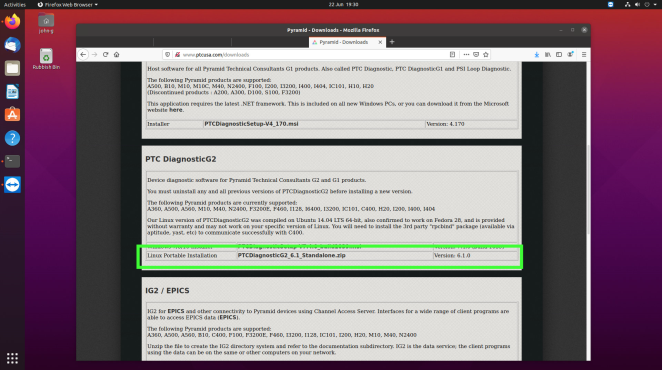
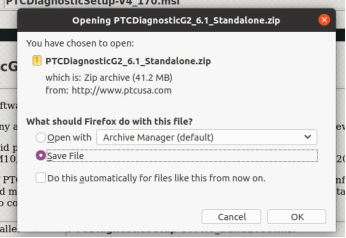
Open the Software page (or the PTC DiagnosticG2 product download section) and find the Linux Portable Installation package. Save the zip archive to your machine.
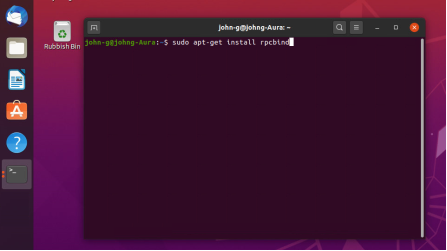
Open a terminal. If you will use a C400, install rpcbind from your distribution repositories first:
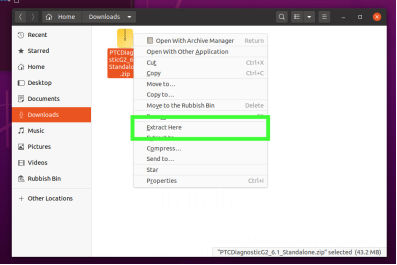
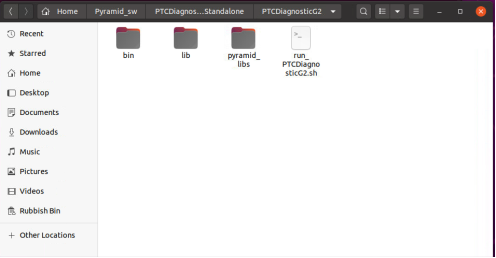
sudo apt-get install rpcbindIn Files or the terminal, open Downloads and extract the archive (for example Extract Here). Move the extracted folder to a convenient location. Inside you should see bin, lib, pyramid_libs, and run_PTCDiagnosticG2.sh.
Run PTCDiagnosticG2
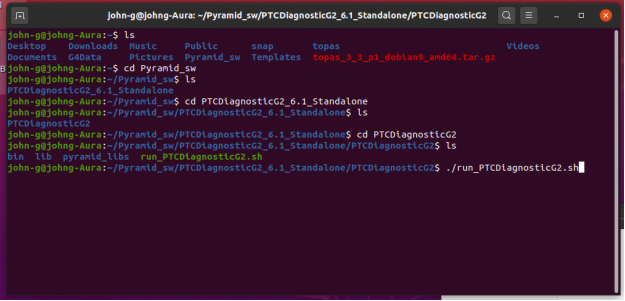
In a terminal, change into the directory that contains run_PTCDiagnosticG2.sh and start it:
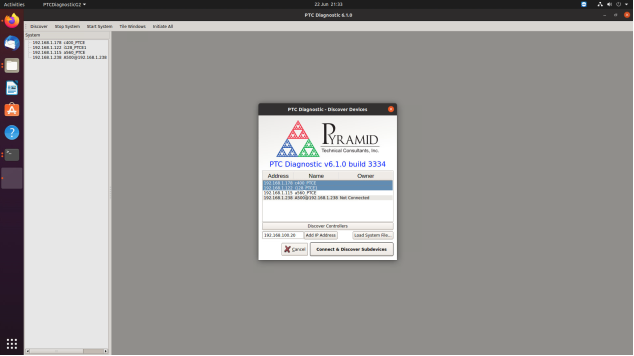
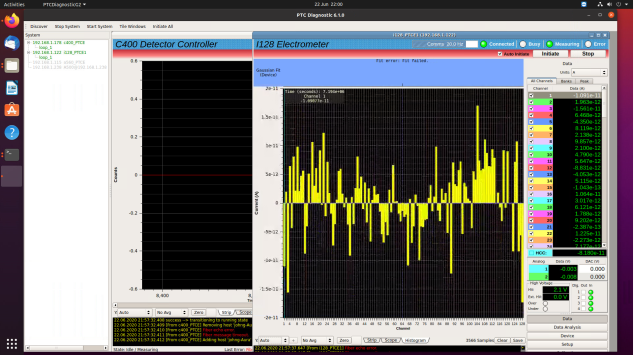
./run_PTCDiagnosticG2.shIf the install is good and the environment is compatible, the app opens with Discover Devices. Click Discover Controllers to list controllers reachable on the network. Select the device or devices you want, then click Connect & Discover Subdevices. Device windows open for each connected instrument (for example a C400 and an I128).
Further Information
For EPICS integration from custom software, see Connecting Pyramid Products to Customer Software Using IG2/EPICS. Browse related notes under Software, or contact us / Support if the portable package will not start on your distro.